
Website Accessibility and the ADA: Small Business Checklist
By Aqib Jon, Web Developer at eLeopards Technologies · 16 Nov 2026 · 6 min read
Quick answer
A plain-English checklist for website accessibility in the US: WCAG basics, quick wins for images, headings, colour and forms, and how to test. Not legal advice.
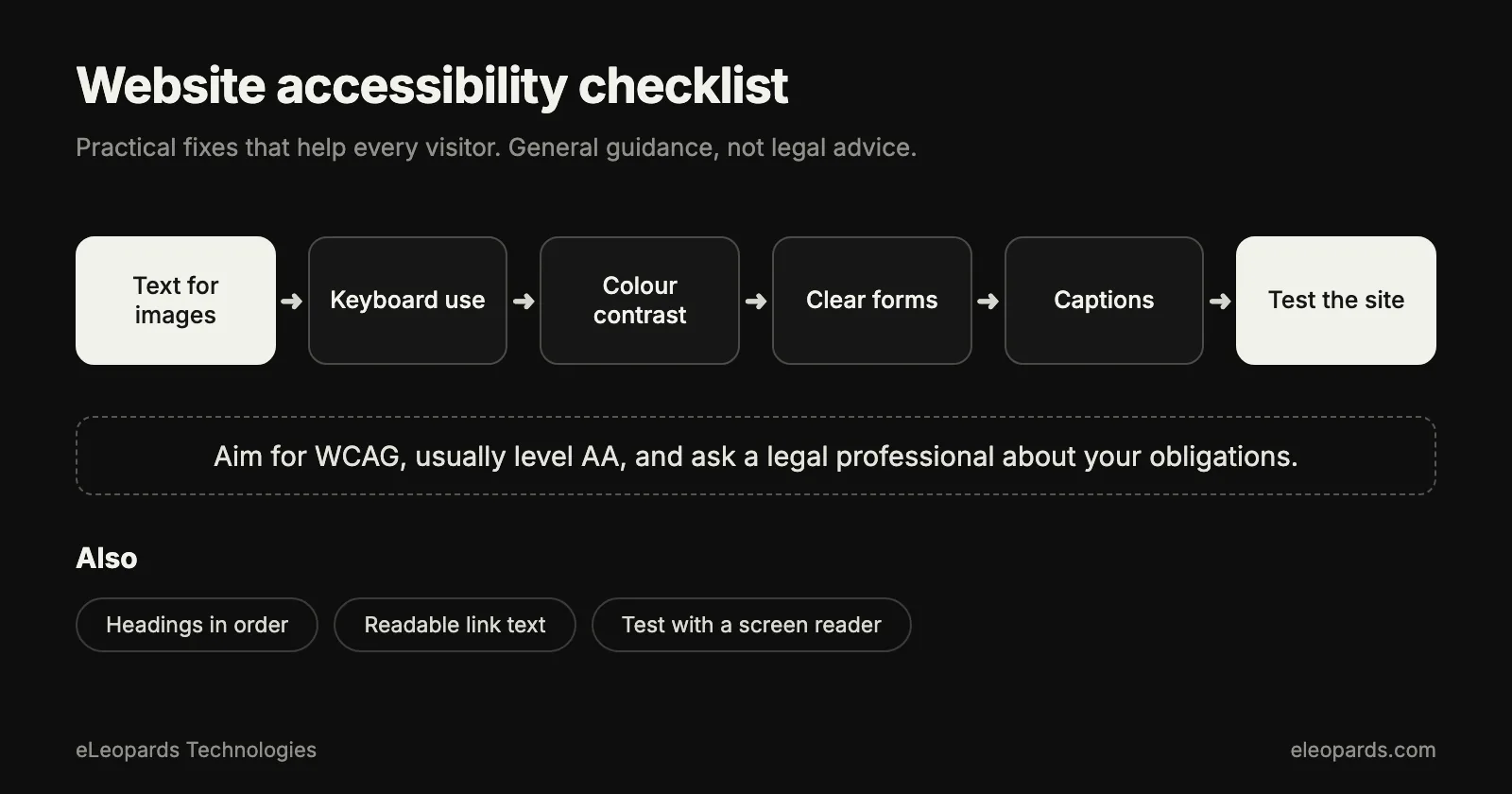
An accessible website works for everyone, including people who use screen readers, keyboards or voice control, and people with low vision or colour blindness. In the US, accessibility guidance for websites generally points to the Web Content Accessibility Guidelines (WCAG), usually level AA. This checklist covers practical fixes. It is general information, so ask a legal professional about your specific obligations.
Why does website accessibility matter?
Accessible sites reach more customers, are easier for everyone to use and tend to perform better in search, because clear structure helps people and search engines alike. Many US businesses also treat accessibility as a way to lower legal risk, and the details depend on your business and location.
What is WCAG?
WCAG is a widely used set of guidelines organised around four ideas: content should be perceivable, operable, understandable and robust. It has three levels, A, AA and AAA. Level AA is the common target for business websites.
Which quick wins come first?
- Add short, descriptive alt text to meaningful images, and leave it empty for purely decorative ones.
- Use real headings in order, with one H1 and sensible H2 and H3 levels.
- Check colour contrast between text and background, aiming for the WCAG AA ratios.
- Make every link and button text meaningful, such as “View pricing” instead of “Click here”.
- Label every form field and show clear error messages.
- Let people zoom the page without losing content.
How do you check keyboard access?
- Press Tab to move through the page and confirm every link, button and field is reachable.
- Make sure a visible outline shows where focus is.
- Confirm menus and pop-ups open and close with the keyboard.
- Offer a skip link that jumps past the navigation to the main content.
- Check that the order of focus follows the visual order.
What about video and audio?
- Add captions to videos.
- Provide a transcript for audio and for key videos.
- Avoid autoplay with sound.
- Give people controls to pause moving content.
How do you test your site?
Run an automated checker to catch common issues, then test by hand: use only the keyboard, zoom to 200 percent, and try a screen reader on your main pages. Automated tools find only part of the problems, so manual checks matter. Invite a few people who use assistive technology to try your key tasks, and fix what they find.
How do you keep it accessible over time?
- Build accessibility checks into every new page and design.
- Train whoever edits content on alt text, headings and link wording.
- Re-test after redesigns and major plugin or theme updates.
- Publish an accessibility statement with a contact method for feedback.
- Respond to reports promptly and record the fix.
Common questions
- What standard should a business website follow for accessibility?
- Accessibility guidance generally points to the Web Content Accessibility Guidelines (WCAG), most often level AA. Ask a legal professional about your specific obligations.
- What are the quickest accessibility fixes?
- Add alt text to meaningful images, use headings in order, check colour contrast, write meaningful link text, label form fields and confirm everything works with a keyboard.
Sources and further reading
- W3C: WCAG overview — The accessibility standard
- W3C: WCAG 2.2 quick reference — Every success criterion in one list
- ADA.gov: web accessibility guidance — U.S. Department of Justice guidance
- web.dev: Core Web Vitals — Speed and stability metrics explained
- MDN: Progressive web apps — How installable web apps work
Want help with this?
Tell us what you are working on and we will reply within one business day.